 Step by Step Guide
 How to improve your home Wi-Fi signal
Improve Wi-Fi coverage with practical changes to router placement, frequency bands, channels, security, firmware, and carefully chosen extra equipment.
Updated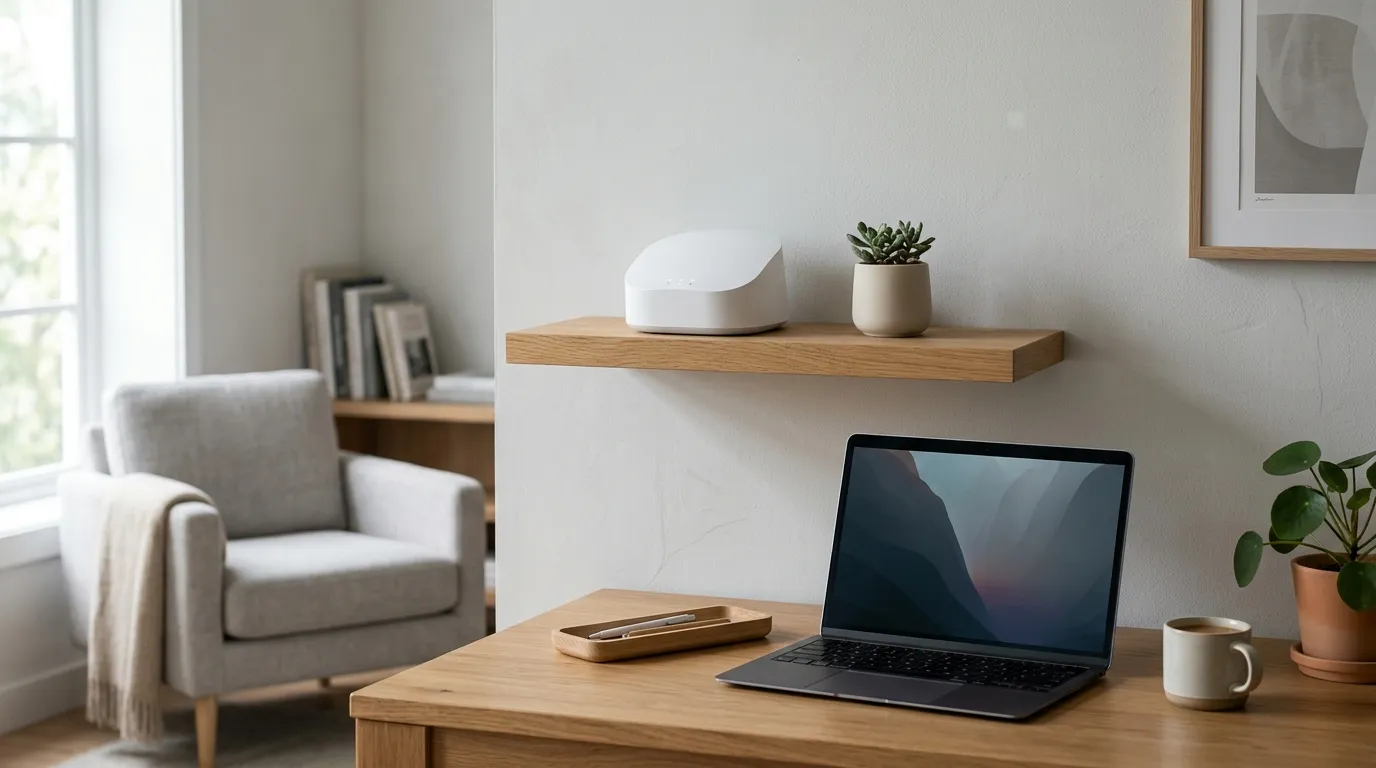
A slow connection in a back bedroom does not automatically mean your internet plan is too small. In many homes, the service reaches the modem at the expected speed, but the wireless signal loses strength on its way through walls, floors, mirrors, appliances, and furniture. Router placement and local interference can matter as much as the number on the bill.
Work through this guide in order before buying new equipment. You will establish a baseline, improve the router’s surroundings, choose suitable bands and channels, and secure and update the network. If a dead zone remains, your measurements will show whether an extender, a mesh system, or a wired connection is the sensible next step.
Safety and security: never interrupt a firmware update, and do not change settings while someone depends on the connection for an urgent call or work session. Save the current network name and settings first, and use a unique administrator password.
Record a useful baseline
Choose three or four repeatable test locations: beside the router, in a commonly used room, in the farthest room, and in the spot where calls or videos usually fail. Use the same phone or laptop at every location. Pause large downloads and, if practical, ask other people to avoid heavy use while you test.
At each point, run the same speed test and note download speed, upload speed, and the Wi-Fi indicator. A single test can be misleading, so run it twice and record the range rather than keeping only the best result.
If possible, connect a computer directly to the router with an Ethernet cable. A healthy wired result paired with poor wireless results points to coverage or interference. A poor wired result suggests that the service, modem, cable, or provider connection may need attention instead. Keep the notes for the final comparison.
Move the router into open space
Place the router near the center of the area that needs coverage, above floor level, with open air around it. A shelf or clear tabletop is usually better than the floor, a closed cabinet, or the space behind a television. Wireless energy spreads outward, so every unnecessary obstacle reduces the useful area.
Keep it away from large metal objects, electrical panels, mirrors, aquariums, and water heaters. Refrigerators and metal shelving can reflect the signal, while water absorbs it. A microwave oven can interfere with 2.4 GHz while operating. Even moving the router a few feet away from these objects may produce a measurable change.
If the provider installed the router at an outside corner, ask whether its cable can be extended or use a longer appropriate cable without creating a tripping hazard. For external antennas, use the manufacturer’s recommended arrangement; a mix of vertical and slightly angled positions can help devices held in different orientations.
Match each device to the right band
Most current routers offer 2.4 GHz and 5 GHz. The 2.4 GHz band usually reaches farther and handles walls better, but it is crowded and has less capacity. The 5 GHz band usually offers more speed and less congestion nearby, but its range falls sooner. Neither band wins in every room.
Use 5 GHz for phones, laptops, televisions, and game systems that stay near the router. Try 2.4 GHz for distant rooms and low-bandwidth devices such as connected plugs or sensors. If the bands have separate names, the choice is easy to test. If one network name combines them, the router steers devices automatically; leave that enabled if roaming works reliably.
Do not judge a band only by the number of signal bars. Connect to each band in the problem location and repeat the same real-world task. A strong but congested 2.4 GHz link can perform worse than a moderate 5 GHz link, while the reverse may be true through several walls.
Reduce channel congestion
Nearby networks share radio airtime. In an apartment building, several routers may choose the same default channel, causing delays even when your signal looks strong. Start by leaving channel selection on automatic, restart the router, and test again. Many routers scan their surroundings when they boot.
If the problem continues and the administration panel allows manual selection, use a Wi-Fi analyzer to see which channels are busy. On 2.4 GHz, channels 1, 6, and 11 are the usual non-overlapping choices in many regions; select the least congested option available under your router’s regional settings. On 5 GHz, automatic selection is often sufficient because more channels exist.
Change one setting at a time and retest the same location. Congestion varies during the day, so compare results when you normally notice trouble.
Restart and update safely
For an ordinary restart, use the panel’s restart control or unplug the router, wait about thirty seconds, and reconnect it. Do not press the recessed reset button, which can erase the configuration. If the modem and router are separate, allow the modem to reconnect before judging the Wi-Fi result.
Next, check the administration panel for a firmware update. Updates can correct security issues, stability problems, and device compatibility. Follow the router’s on-screen instructions, keep it powered throughout the process, and wait for it to finish completely. Some provider-managed equipment updates automatically and may not show a manual option.
Protect and simplify the network
Change the router administrator password if it is still the factory default. Use the strongest current wireless security mode supported by all essential devices and create a long, unique Wi-Fi password. After changing it, reconnect only recognized devices and review the connected-device list for unfamiliar entries.
Create a guest network for visitors and, when practical, for simple smart-home devices. Isolation keeps guests from reaching computers or shared storage on the main network. Disable obsolete compatibility modes only after confirming that important older devices still connect.
Extend coverage only where needed
Repeat the baseline tests after the free adjustments. If speed is good beside the router but consistently poor in one isolated area, an extender may help. Place it roughly between the router and the dead zone, where it still receives a reliable signal. An extender installed inside the dead zone can only repeat a weak connection.
For a large, long, or multistory home with several weak areas, a mesh system provides multiple coordinated access points under one network name. Position each point where it can communicate well with the next. When Ethernet wiring is available, a wired connection between access points offers the most stable backbone.
Before choosing equipment, test a temporary router position near the center of the home. That quick experiment separates a placement problem from a true coverage limit and helps you avoid adding hardware that does not address the cause.
Common mistakes
- Hiding the router in a cabinet or behind a television.
- Buying an extender before measuring the existing coverage.
- Putting an extender where the original signal is already unusable.
- Changing several settings at once and losing the ability to compare results.
- Pressing the factory-reset button when only a restart was needed.
- Ignoring firmware and leaving the administrator password unchanged.
- Comparing tests made with different devices or under different network loads.
Run the original tests once more with the same device and locations. Keep the configuration that improves normal use, not merely the highest isolated speed. Review connected devices and firmware every few months, and repeat the measurements if furniture, rooms, or equipment change.
Frequently asked questions
Does moving the router really improve the signal?
Often, yes. A central, elevated, open location removes obstacles from the signal path and can improve coverage more than a small settings change.
Is 5 GHz always better than 2.4 GHz?
No. The 5 GHz band is usually faster at short range, while 2.4 GHz reaches farther and passes through walls more effectively. Keep both available.
Should I buy an extender or a mesh system?
An extender can cover one isolated dead zone. A mesh system is generally better for a large or multistory home where several areas need coverage.
Will changing the Wi-Fi password make the internet faster?
Only if unknown devices were consuming bandwidth. A strong new password mainly protects the network, which is still an important improvement.
Informational content. For risky situations or technical, legal or medical doubts, talk to a professional.